
Method 1: Changing Your Email Password via cPanel
This method is best if you are the account administrator and have access to the main control panel.
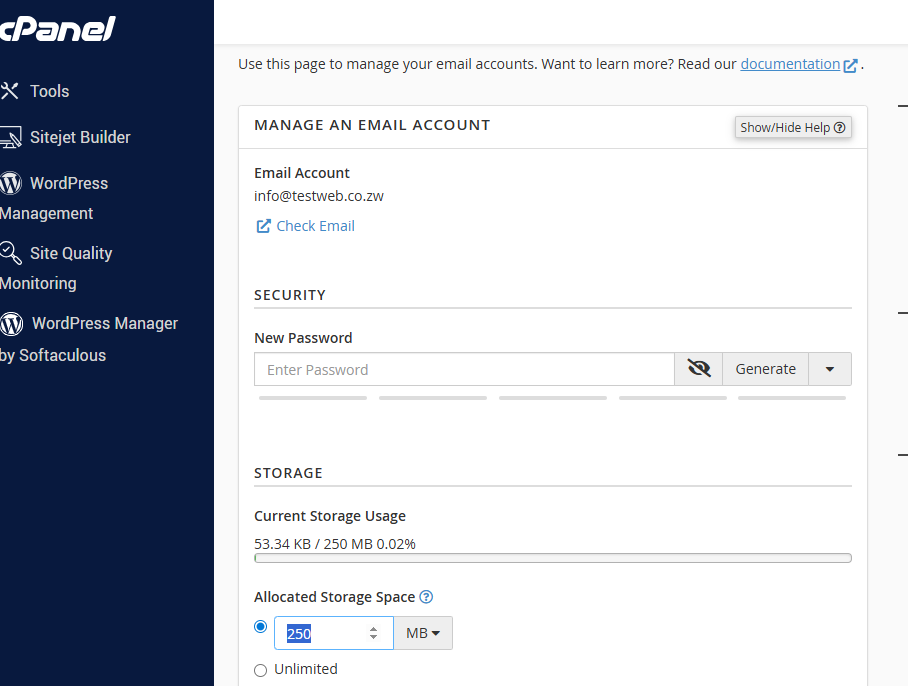
Step-by-Step Instructions:
- Access Email Accounts: Log in to your cPanel and navigate to the Email section. Click on Email Accounts.
- Locate the Account: Find the specific email address you wish to update from the list of active accounts.
- Manage Settings: Click the Manage button located next to that email address.
- Enter New Password: Under the Security section, type your new password into the New Password field.
- Save Changes: Scroll to the bottom of the page and click Update Email Settings.
Method 2: Changing Your Email Password via Webmail
This method is ideal for individual users who want to change their own password without needing full access to the cPanel.
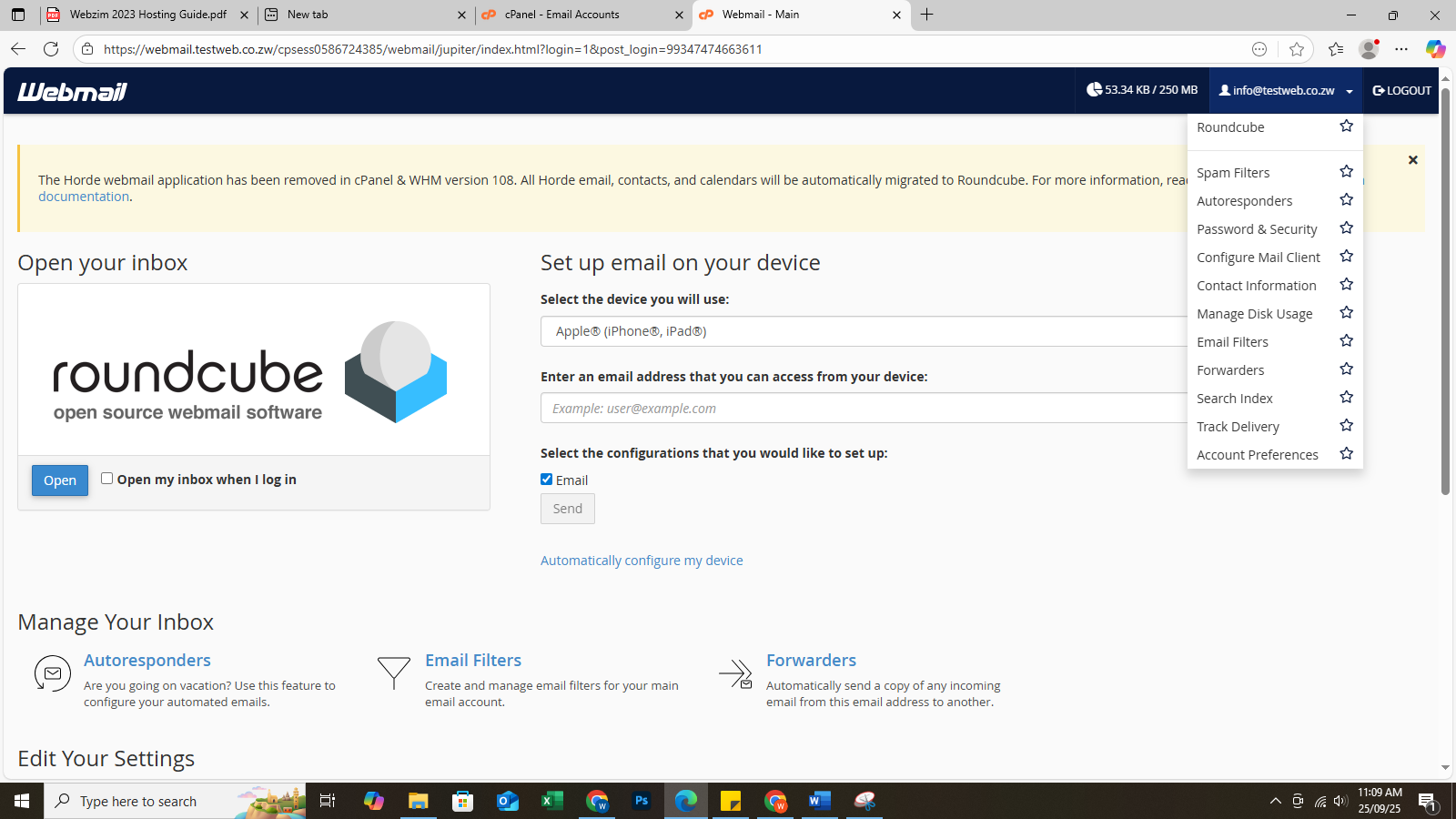
Step-by-Step Instructions:
- Log In: Access your email via Webmail (yourdomain.co.zw/webmail).
- Open User Settings: In the top-right corner of the screen, click on your Email Address (located next to the Logout button).
- Select Password & Security: Click on Password & Security from the dropdown menu.
- Update Password: * Enter your New Password.
- Enter it again in the Confirm New Password field to ensure it matches.